Best AI Video Tools for YouTube Creators
I didn’t plan on spending half my year testing AI video tools for YouTube. Honestly, I thought I’d try a few apps, pick a favorite, and move on. But the deeper I got into the world of best AI video editors, the more I realized how messy this space really is. Every tool promises “one‑click magic,” but most of them break the moment you try to build a real workflow. And if you’re a creator, you already know the pain — the late‑night edits, the audio that suddenly desyncs, the export that fails at 98%. I’ve lived all of it.
I remember one night sitting at my desk, staring at a timeline that looked like a crime scene. I had tried stitching together clips using a supposedly “smart” editor — one of those AI tools for YouTube creators that claims to do everything automatically. It chopped my footage so aggressively that I sounded like I was speed‑running my own script. I felt stupid for trusting it. That was the moment I realized I needed to test these tools properly, not just skim their landing pages.
If you’re a YouTuber, you already know how much time disappears into editing. That’s why YouTube video automation tools are exploding right now. Creators want to spend more time filming and less time dragging clips around.
This guide is for creators who want real answers, not hype. Whether you’re editing long‑form tutorials, short‑form clips, or full storytelling videos, the right AI video editing software can save you hours. But the wrong one will waste days. I learned that the hard way. And as I kept testing more AI video tools for YouTube, I started noticing patterns — the tools that actually help, the ones that pretend to help, and the ones that break your workflow in ways you don’t see coming.
So this roundup isn’t just a list. It’s the result of dozens of tests, failed exports, broken timelines, and a few surprising wins. If you’re looking for the best AI video editors that actually work for real creators, you’re in the right place. And yes, I’ll tell you exactly which YouTube video automation tools are worth your time — and which ones I’d never touch again.
⭐ Quick Summary Table
| Tool | Best For | Price |
|---|---|---|
| Descript | Text‑based editing for YouTubers | $12–$24/mo |
| Runway | Advanced AI effects + smart masking | $15–$35/mo |
| Pictory | Turning scripts into videos fast | $19–$39/mo |
| Opus Clip | Repurposing long videos into shorts | $19–$49/mo |
| Premiere Pro (AI) | Pro‑level editing with AI assists | $22.99/mo |
⭐ How I Tested These Tools
Testing AI video tools for YouTube became a weird obsession for me. My workflow was simple: I took the same raw footage — a talking‑head segment, a screen‑recorded tutorial, and a messy vlog clip — and ran them through different best AI video editors. I wanted to see which tools actually understood pacing, tone, and structure. Some tools surprised me. Some tools made me want to throw my mouse across the room. One tool even duplicated my voice and added a weird robotic echo that made me sound like I was broadcasting from a submarine. That was the moment I realized how many AI tools for YouTube creators are built by people who have never actually edited a video.
I also tested how well each tool handled repetitive tasks. Things like cutting silences, reframing vertical clips, cleaning audio, and generating captions. This is where YouTube video automation tools either shine or fall apart. Automation is great until it misunderstands your style — then it becomes a liability.
The last part of my testing was export reliability. You’d be shocked how many tools fail here. I had a supposedly “pro‑grade” editor freeze at 98% export three times in a row. That’s when I realized reliability matters more than flashy features. A tool can have the smartest AI video editing software in the world, but if it can’t export cleanly, it’s useless.
⭐ REVIEWS
1. Descript
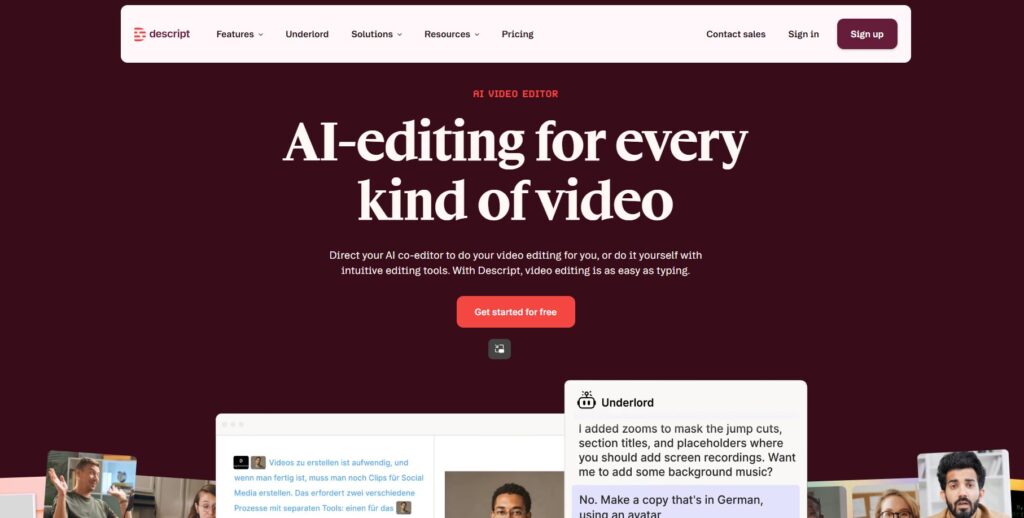
Verdict: The fastest way to edit talking‑head videos without touching a timeline.
Best For: Creators who want to edit video by editing text.
Price: $12–$24/mo
Pros:
- Edit video by editing the transcript
- Great for removing filler words
- Fast learning curve
- Strong AI audio cleanup
Cons:
- Transcript errors happen
- Not ideal for cinematic editing
My Experience: Descript was the first tool that genuinely changed how I edit. I remember deleting a filler word from the transcript and watching the video update instantly — it felt like cheating. The real shock came when I accidentally removed an entire paragraph and Descript stitched the video together so smoothly I didn’t notice until playback. It’s not perfect, but for talking‑head creators, it’s a lifesaver.
Use Cases:
- Tutorials
- Commentary videos
- Educational content
- Podcast‑style videos
Bottom Line: If you talk on camera, Descript will save you hours.
2. Runway
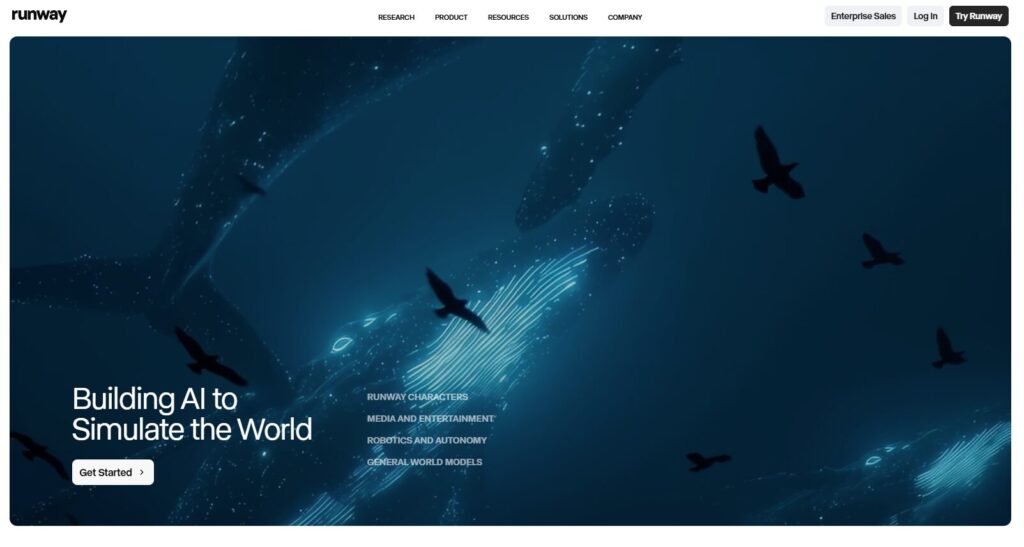
Verdict: Hollywood‑grade AI effects for creators who want visual punch.
Best For: AI masking, background removal, and creative effects.
Price: $15–$35/mo
Pros:
- Insanely good masking
- AI background removal
- Motion tracking
- Unique creative effects
Cons:
- Not a full editor
- Can get expensive
My Experience: Runway is the tool that made me say, “Okay, AI is actually wild.” I filmed a clip in my kitchen, and Runway made it look like I shot it in a studio. The masking is shockingly good. The AI effects are addictive — I spent an hour playing with motion tracking just because it felt like having a Hollywood tool on my laptop.
Use Cases:
- B‑roll
- Visual effects
- Background cleanup
- Creative storytelling
Bottom Line: Not an editor — but an incredible add‑on for creators who want polish.
3. Pictory
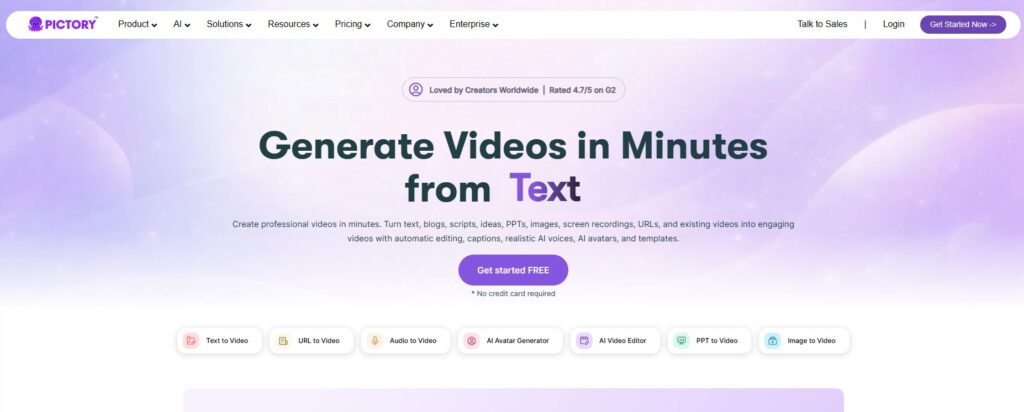
Verdict: The fastest way to turn scripts into full videos.
Best For: Faceless channels and educational creators.
Price: $19–$39/mo
Pros:
- Auto‑scene creation
- Script‑to‑video workflow
- Easy to use
- Great for beginners
Cons:
- Not cinematic
- Limited customization
My Experience: Pictory surprised me. I expected generic slideshow videos, but it built a coherent, well‑paced video from my script. I caught myself thinking, “Okay… this is better than I expected.” It’s not for filmmakers, but for educational channels, it’s a secret weapon.
Use Cases:
- Faceless channels
- Tutorials
- Listicles
- Explainers
Bottom Line: If you want fast, consistent videos, Pictory delivers.
4. Opus Clip
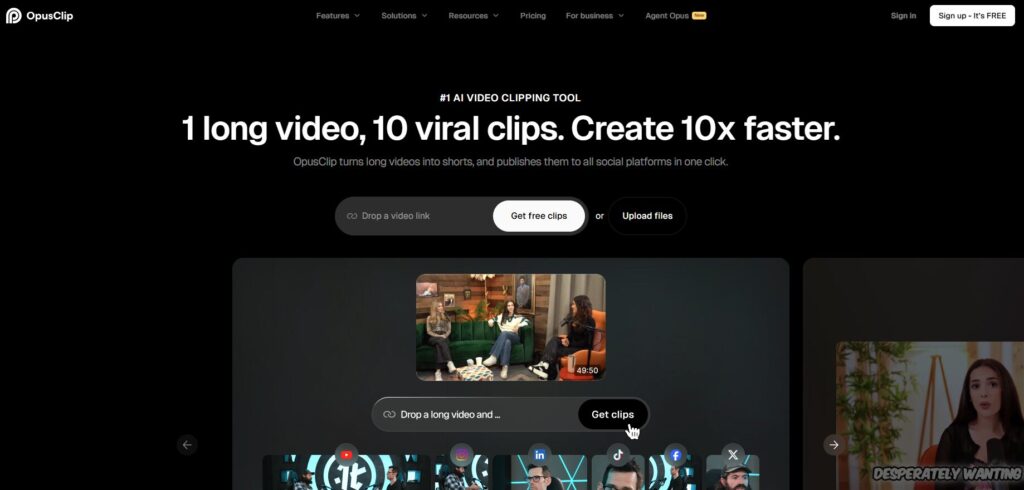
Verdict: The best tool for turning long videos into shorts.
Best For: Short‑form creators and repurposing long content.
Price: $19–$49/mo
Pros:
- Auto‑clip extraction
- Virality scoring
- Smart reframing
- Fast processing
Cons:
- Picks odd moments sometimes
- Captions need tweaking
My Experience: Opus Clip saved me during a week when I was drowning in long‑form content. I uploaded a 20‑minute tutorial, and it pulled out the best moments automatically. One clip even outperformed my manually edited version. I didn’t expect that.
Use Cases:
- Shorts
- TikToks
- Reels
- Repurposing long videos
Bottom Line: If you post short‑form content, this tool is a must‑have.
5. Premiere Pro (with AI)
https://www.adobe.com/products/premiere.html
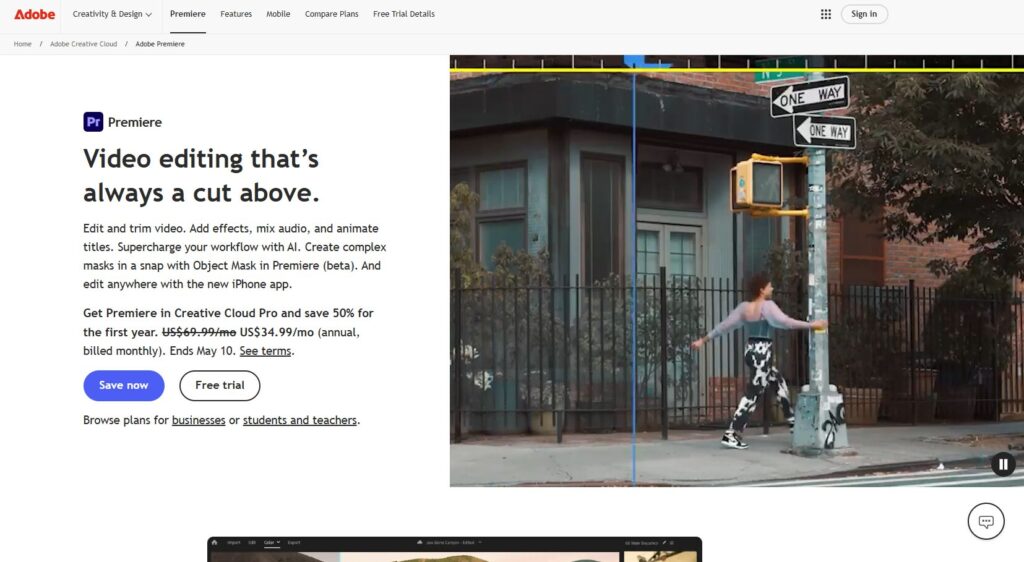
Verdict: The most powerful editor with genuinely useful AI assists.
Best For: Creators who want full control with AI speed boosts.
Price: $22.99/mo
Pros:
- Auto‑reframe
- AI audio cleanup
- Industry‑standard tools
- Endless control
Cons:
- Heavy on RAM
- Occasional crashes
My Experience: Premiere is still the heavyweight champion. Auto‑reframe saved me hours converting horizontal videos into vertical. The AI audio cleanup removed a low hum from my mic that I didn’t even notice until it was gone. It’s still Premiere — it still crashes — but nothing beats it for control.
Use Cases:
- Professional editing
- Long‑form content
- Multi‑camera videos
- High‑production channels
Bottom Line: If you want maximum control, Premiere is still king.
6. CapCut (Desktop + Web)
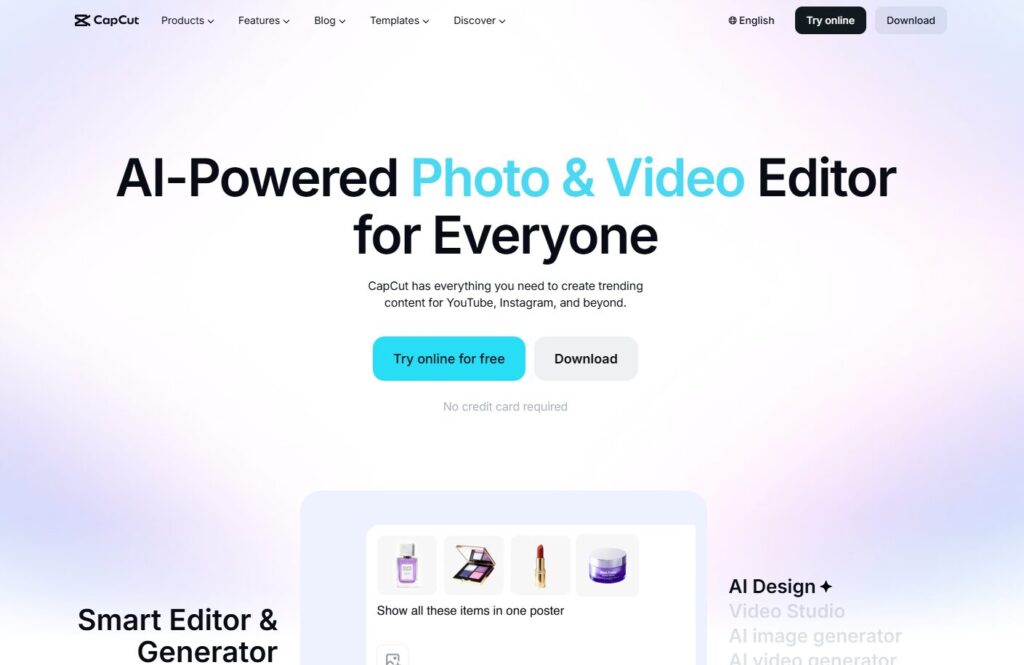
Verdict: The easiest all‑in‑one editor for short‑form creators.
Best For: Shorts, TikToks, Reels, and fast edits.
Price: Free (with optional paid add‑ons)
Pros:
- Shockingly good auto‑captions
- Smart reframing
- Built‑in effects and templates
- Fast, simple interface
Cons:
- Not ideal for long‑form
- Occasional export glitches
My Experience: CapCut is the tool I didn’t want to like — but ended up using constantly. One night I needed to cut a short clip fast, and Premiere kept freezing. Out of frustration, I opened CapCut, dropped the clip in, hit auto‑captions, and the edit was basically done. I remember thinking, “Why is this free?” It’s not a pro editor, but for short‑form creators, it’s dangerously good.
Use Cases:
- Shorts
- TikTok
- Reels
- Fast edits
Bottom Line: If you make short‑form content, CapCut is almost impossible to beat.
7. Veed.io
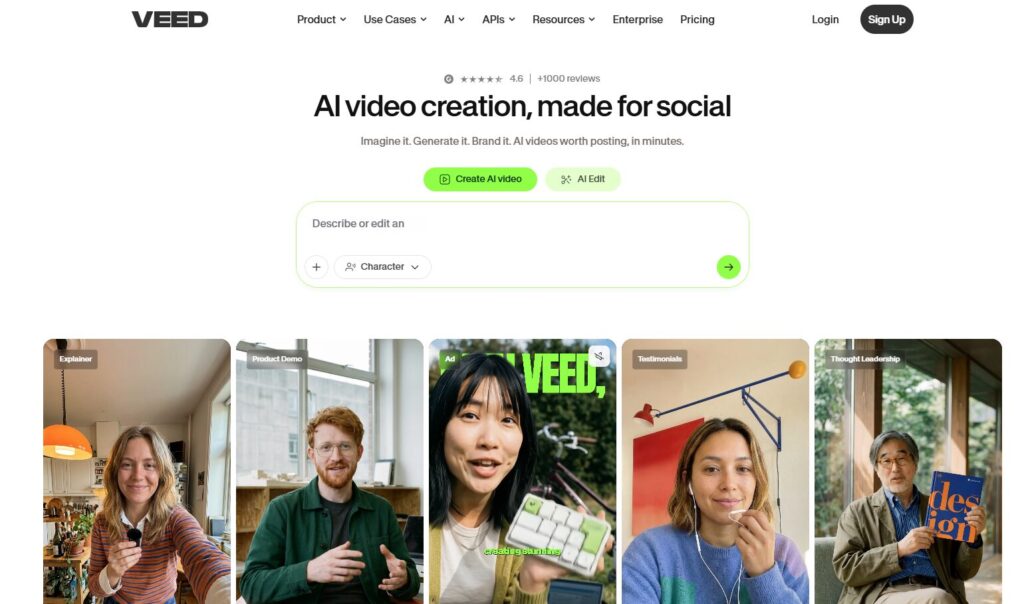
Verdict: A simple, browser‑based editor with surprisingly strong AI tools.
Best For: Creators who want editing without installing software.
Price: $18–$38/mo
Pros:
- Clean interface
- Auto‑subtitles
- AI cleanup tools
- Great for beginners
Cons:
- Browser limitations
- Occasional lag on long videos
My Experience: Veed is the tool I recommend to creators who hate editing. It’s simple, clean, and doesn’t overwhelm you with features. I used it during a trip when I only had my laptop and terrible hotel Wi‑Fi. Somehow, it still handled my footage. The auto‑subtitles were accurate enough that I barely had to tweak them. It’s not the most powerful tool, but it’s one of the most approachable.
Use Cases:
- Tutorials
- Talking‑head videos
- Social clips
- Quick edits
Bottom Line: If you want simple, Veed is the easiest editor to learn.
8. InVideo
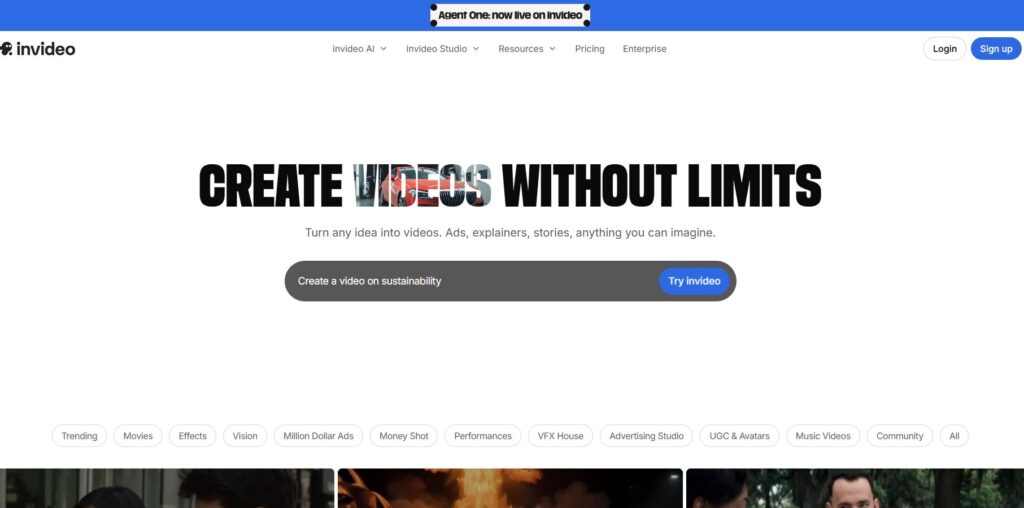
Verdict: A template‑driven editor for fast, polished videos.
Best For: Creators who want speed and structure.
Price: $20–$48/mo
Pros:
- Huge template library
- Script‑to‑video workflow
- Easy branding tools
- Fast rendering
Cons:
- Templates can feel repetitive
- Limited fine‑tuning
My Experience: InVideo is the tool I use when I need something polished fast. I once had to produce a promo video in under an hour, and InVideo basically carried me. I dropped in my script, picked a template, swapped a few clips, and it looked like I spent half a day on it. It’s not for creators who want deep control, but for speed? It’s a monster.
Use Cases:
- Promo videos
- Listicles
- Explainers
- Branded content
Bottom Line: If you want fast, structured videos, InVideo is a powerhouse.
9. Wondershare Filmora (AI Edition)
https://filmora.wondershare.com
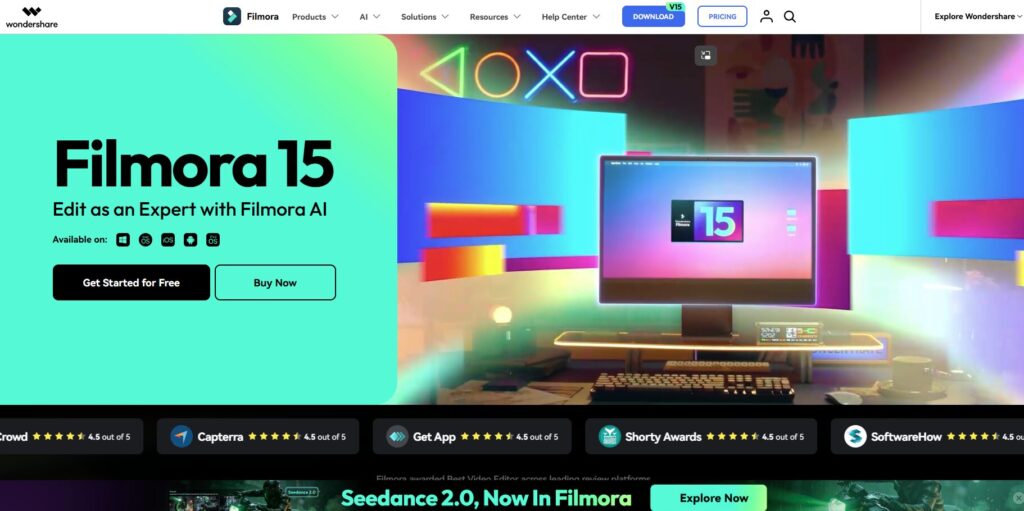
Verdict: A beginner‑friendly editor with surprisingly strong AI assists.
Best For: Creators who want a simple editor with pro‑level polish.
Price: $49.99/yr
Pros:
- Clean interface
- AI audio cleanup
- AI motion tracking
- Easy timeline editing
Cons:
- Not as powerful as Premiere
- Occasional stability issues
My Experience: Filmora is the tool I recommend to creators who want something more powerful than CapCut but less overwhelming than Premiere. The AI motion tracking is shockingly good for the price. I used it to track a product in a clip, and it worked on the first try — something Premiere didn’t manage that day. It’s not perfect, but it’s a great middle ground.
Use Cases:
- Product videos
- Tutorials
- Vlogs
- Review videos
Bottom Line: If you want simple editing with real power, Filmora hits the sweet spot.
10. DaVinci Resolve (with AI)
https://www.blackmagicdesign.com/products/davinciresolve
Verdict: The most powerful free editor — now with serious AI upgrades.
Best For: Creators who want pro‑grade editing without paying.
Price: Free (Studio version optional)
Pros:
- Hollywood‑grade color tools
- AI noise reduction
- AI masking
- Free version is insanely powerful
Cons:
- Steeper learning curve
- Heavy on hardware
My Experience: DaVinci is the editor I turn to when I want absolute control. The new AI masking is ridiculous — I used it to isolate myself from a busy background, and it looked like I spent hours rotoscoping. The learning curve is real, but once you get comfortable, it’s one of the strongest AI video editing software options available, especially for creators who want cinematic quality.
Use Cases:
- Cinematic videos
- High‑production YouTube
- Color‑driven content
- Long‑form storytelling
Bottom Line: If you want pro‑level editing for free, DaVinci is unmatched.
⭐ Buyer’s Guide
Choosing the right AI video tools for YouTube is harder than it looks. Every tool promises speed, automation, and “studio‑quality results,” but most creators learn the truth the hard way — the wrong tool doesn’t just slow you down, it breaks your workflow.
The first thing to understand is that not all best AI video editors are built for the same type of creator. Some tools are designed for short‑form speed. Some are built for cinematic control. Some lean heavily into automation. And some are built for creators who want to stay hands‑on. The trick is knowing which category you fall into — and which tools match your workflow.
Automation is another area where creators get burned. YouTube video automation tools can save you hours — or ruin your footage. I’ve had tools crop my face off, rewrite my pacing, and generate captions that made me sound like I was speaking in riddles. But I’ve also had automation tools that genuinely felt like magic.
Finally, don’t underestimate reliability. A piece of AI video editing software can have the smartest features in the world, but if it crashes during export, it’s useless. I’ve had tools freeze at 98% export more times than I want to admit. That’s why reliability is one of the biggest factors in my recommendations — and why only a handful of AI tools for YouTube creators made the final cut. The rest taught me what to avoid when choosing AI video tools for YouTube, and which of the so‑called best AI video editors actually deserve that title.
⭐ Buyer’s Guide — What to Look For
1. Speed vs. Control
If you want fast edits, choose automation‑heavy tools. If you want precision, choose timeline‑based editors.
2. Caption Accuracy
Bad captions ruin videos. Good captions save hours.
3. Export Reliability
If a tool can’t export cleanly, it’s not worth using.
4. Audio Cleanup
AI audio cleanup is one of the biggest time‑savers. Some tools nail it. Some tools destroy your voice.
5. Style Matching
The tool should adapt to your pacing — not overwrite it.
⭐ FAQ
1. Can AI fully replace manual editing? Not yet. AI video tools for YouTube can speed up editing, but it can’t replace creative judgment.
2. What’s the best tool for beginners? CapCut or Veed — both are simple and fast.
3. What’s the best tool for long‑form YouTube videos? Premiere Pro or DaVinci Resolve.
4. What’s the best tool for short‑form content? Opus Clip or CapCut.
5. Do I need multiple tools? Most creators do. One for long‑form, one for shorts, one for effects.
⭐ Final Recommendation
If you want the simplest setup: Descript + CapCut
If you want the most powerful setup: Premiere Pro + Runway
If you want the fastest automation setup: Opus Clip + Pictory
If you want the best free setup: DaVinci Resolve
And if you’re a creator who wants to scale without burning out, the right mix of AI video tools for YouTube will save you more time than any camera upgrade ever could.
⭐ Related Guides
⭐ ABOUT THE AUTHOR
Where This All Started
When I first started building ToolCompare.ai, I didn’t plan on diving so deep into video creation. I was just trying to understand why editing felt so painfully slow. I remember sitting at my desk one night, staring at a timeline that looked like a battlefield, wondering why none of the tools I tried actually made things easier. That frustration became the spark that pushed me to start testing AI video tools for YouTube myself instead of trusting the hype.
The Mistake That Changed Everything
My biggest early mistake was assuming “AI” meant “automatic.” I once trusted a tool to clean up a tutorial video, and it butchered the pacing so badly I had to scrap the entire edit. I felt stupid for believing the marketing. That moment taught me that even the best AI video editors can fall apart if they don’t understand your style. It also taught me that creators need honest testing, not recycled talking points.
The Turning Point
Things shifted when I stopped chasing features and started chasing reliability. I remember the first time a tool actually saved me hours instead of creating new problems. It auto‑cut my footage, cleaned the audio, and kept my pacing intact. That was the moment I realized how powerful the right AI tools for YouTube creators can be when they’re built with real workflows in mind.
What I Learned Building ToolCompare.ai
Looking back, the journey taught me something I didn’t expect: creators don’t need more tools — they need the right ones. I built ToolCompare.ai because I wanted a place where creators could get honest, lived‑in insights instead of generic lists. If this guide helps even one person avoid the mistakes I made while testing YouTube video automation tools, then every late‑night edit was worth it.