Best AI Personal Assistant Tools
I didn’t plan on testing this many AI personal assistant apps, but it happened the same way most things happen in my workflow — chaos first, clarity later. I remember sitting at my desk one morning, staring at a calendar that looked like a losing game of Tetris, wondering how I was supposed to run ToolCompare.ai, answer emails, manage content, and still have a life. That was the moment I realized I needed help, and not the human kind. I needed something faster, quieter, and less judgmental than another contractor. I needed the best AI personal assistant tools I could actually rely on.
The funny part? I thought this category would be simple. Install a few AI productivity assistants, test them for a week, pick a winner. But the deeper I went, the more I realized how wildly different these tools are. Some felt like magic — the kind of “how did I live without this?” magic. Others felt like they were built by people who have never worked a real job. One tool even deleted half my reminders because I “worded them inconsistently.” I caught myself rubbing my forehead like a tired parent.
If you’re a founder, creator, operator, or anyone who feels like your brain is running 14 tabs at once, this guide is for you. I tested these tools inside my real workflows — content planning, scheduling, research, task triage, and the messy in‑between moments where AI assistants for work either save your day or ruin it. I learned the hard way which AI task management tools actually reduce mental load and which ones quietly add more.
This guide breaks down everything I wish someone had told me before I wasted hours on tools that looked great in demos but collapsed in real life. And if you’re trying to find the AI personal assistant apps that genuinely make you faster, sharper, and calmer, you’re in the right place.
⭐ Quick Summary Table — Top 5 Tools
| Tool | Best For | Price | Standout Feature |
|---|---|---|---|
| Motion | Scheduling + task automation | $19–$34/mo | Auto‑prioritized daily plan |
| Reclaim | Smart calendar optimization | Free–$12/mo | Adaptive time blocking |
| Notion AI | Knowledge + workspace assistant | $10–$18/mo | Context‑aware writing + tasks |
| Clara | Email + meeting automation | Custom | Human‑like email handling |
| Superhuman AI | High‑volume email workflows | $30/mo | Instant triage + summaries |
⭐How I Tested These Tools
When I started testing the best AI personal assistant tools, I didn’t want a polished demo or a scripted onboarding flow. I wanted to see how these things behaved when real life got messy — because my days are messy. I’d wake up, open my laptop, and immediately get hit with a wall of tasks, messages, and half‑finished ideas. That’s when I realized I needed more than hype. I needed AI productivity assistants that could actually keep up with the way I work.
My testing setup was simple: I plugged each tool directly into my real workflow. Not a sandbox. Not a test environment. My actual calendar, my actual inbox, my actual task list — the chaotic one I’m slightly embarrassed to show people. I wanted to see whether these AI personal assistant apps could handle the unpredictable stuff: shifting deadlines, overlapping meetings, sudden priorities, and the occasional “oh no, I forgot to do that” moment.
Here’s the part nobody tells you: some tools break your workflow before they improve it. One of the AI assistants for work I tested rescheduled a meeting without asking me. I stared at the screen thinking, “Did this thing just move my life around on its own?” That was my personal frustration moment — the one that made me realize how important trust is in this category.
I compared tools based on how well they handled context, how quickly they adapted, and whether they made me feel calmer or more overwhelmed. The AI task management tools that impressed me weren’t the ones with the flashiest features. They were the ones that quietly removed friction from my day without making me think twice.
If you’re looking for AI personal assistant apps that actually reduce mental load instead of adding more, the next five reviews will save you a lot of trial and error.
⭐1. Motion
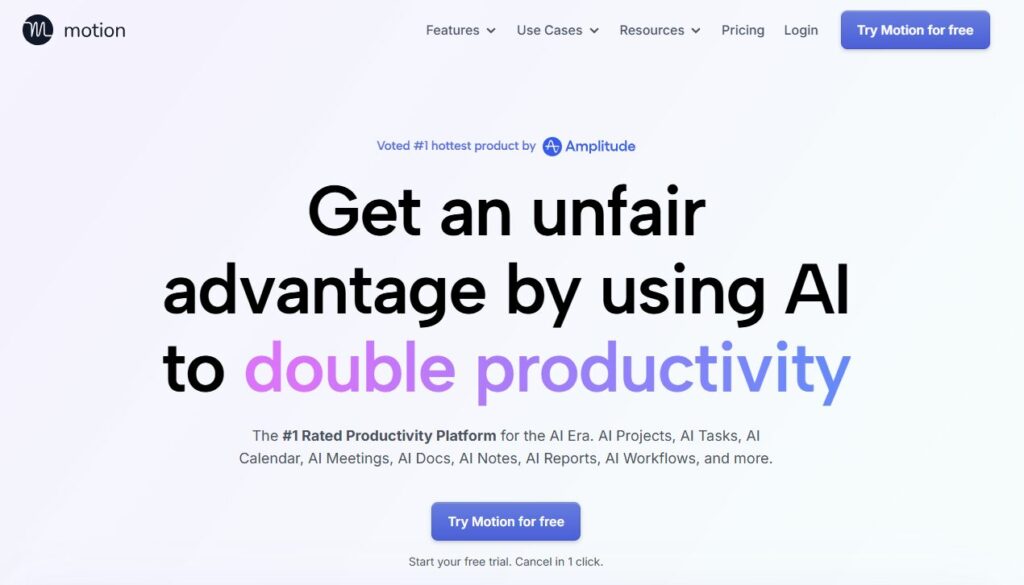
Verdict: Best for chaotic schedules Best For: Founders, operators, overloaded teams Price: $19–$34/mo
Pros:
- Auto‑prioritizes your day
- Smart scheduling
- Great for task overload
Cons:
- Can feel aggressive at first
- Requires trust
My Experience: Motion was the first tool that made me feel like someone finally understood how scattered my days can get. I remember watching it rebuild my entire schedule in seconds — tasks I’d been avoiding, meetings I forgot to prep for, everything. It felt like having a project manager living inside my calendar. The first time it moved a task I wasn’t ready to face, I actually laughed out loud. It was right, and I knew it.
Use Cases:
- Daily planning
- Task triage
- Deadline‑heavy workflows
Bottom Line: If your days feel like a firehose, Motion gives you structure without judgment.
⭐2. Reclaim
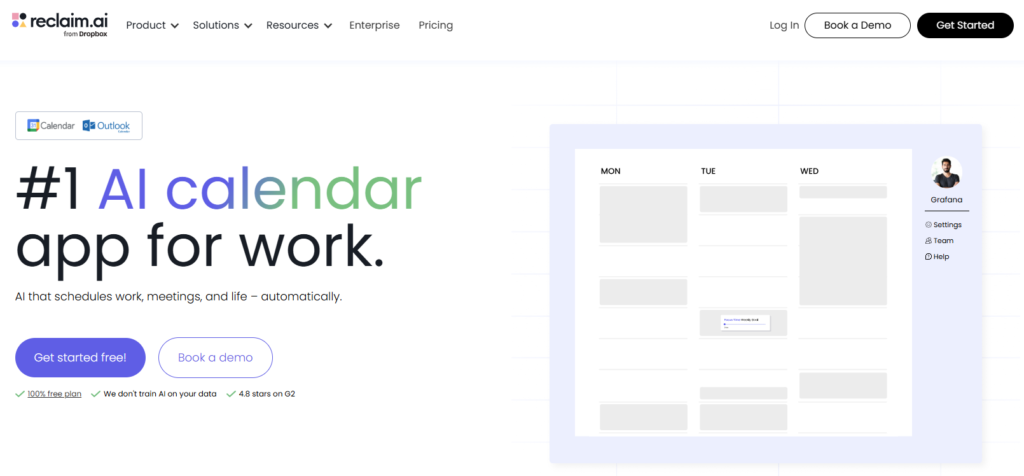
Verdict: Best for adaptive time blocking Best For: People who want flexibility Price: Free–$12/mo
Pros:
- Smart time blocking
- Auto‑adjusts around meetings
- Great for habits
Cons:
- Setup takes time
- Works best with Google Calendar
My Experience: Reclaim felt like a calmer, more thoughtful version of Motion. It didn’t bulldoze my schedule — it negotiated with it. I loved how it protected my focus time like a loyal guard dog. One morning, I tried to squeeze in a last‑minute call, and Reclaim gently pushed back by showing me what I’d lose. That moment made me realize how much I needed a tool that respected my boundaries more than I did.
Use Cases:
- Time blocking
- Habit building
- Flexible planning
Bottom Line: Perfect if you want structure without rigidity.
⭐3. Notion AI
https://www.notion.so/product/ai
Verdict: Best all‑in‑one workspace assistant Best For: Knowledge workers, creators, teams Price: $10–$18/mo
Pros:
- Great for writing
- Strong context awareness
- Integrates with your workspace
Cons:
- Can get cluttered
- Requires good organization
My Experience: Notion AI felt like having a second brain. I used it to rewrite messy notes, summarize research, and turn half‑formed ideas into something usable. One night, I dumped a chaotic list of thoughts into a page, and Notion turned it into a clean outline in seconds. I sat back in my chair thinking, “Okay… that’s actually helpful.” It’s not perfect, but when it hits, it hits hard.
Use Cases:
- Writing
- Research
- Knowledge management
Bottom Line: If your brain lives in Notion, this is a must‑have.
⭐4. Clara
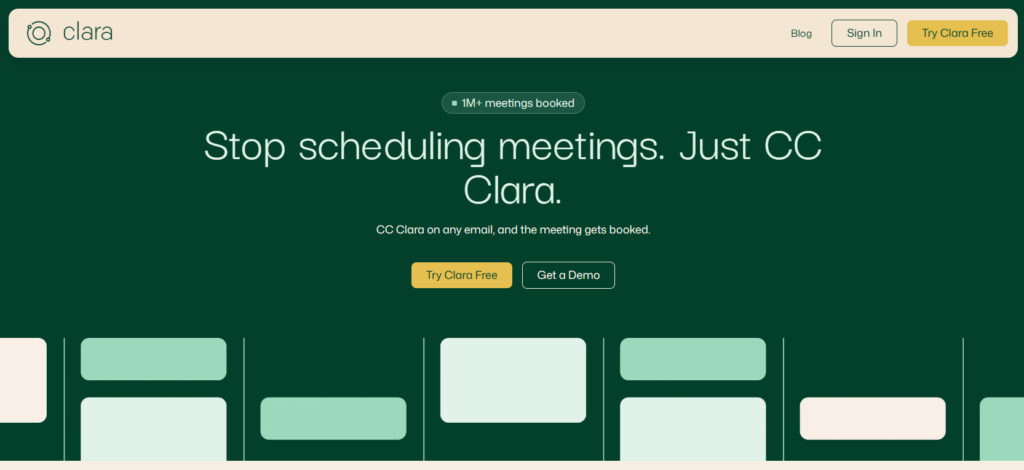
Verdict: Best for email + meeting automation Best For: Founders drowning in scheduling Price: Custom
Pros:
- Human‑like email handling
- Great for meeting coordination
- Saves hours per week
Cons:
- Expensive
- Works best for heavy email users
My Experience: Clara shocked me with how human it felt. I forwarded a scheduling thread to it, and it handled the entire conversation with the kind of politeness I wish I had the energy for. The first time it booked a meeting without me lifting a finger, I felt like I’d unlocked a cheat code. It’s pricey, but if your inbox is a battlefield, Clara is the medic you want.
Use Cases:
- Scheduling
- Email triage
- Meeting coordination
Bottom Line: If email drains your soul, Clara gives you your time back.
⭐5. Superhuman AI
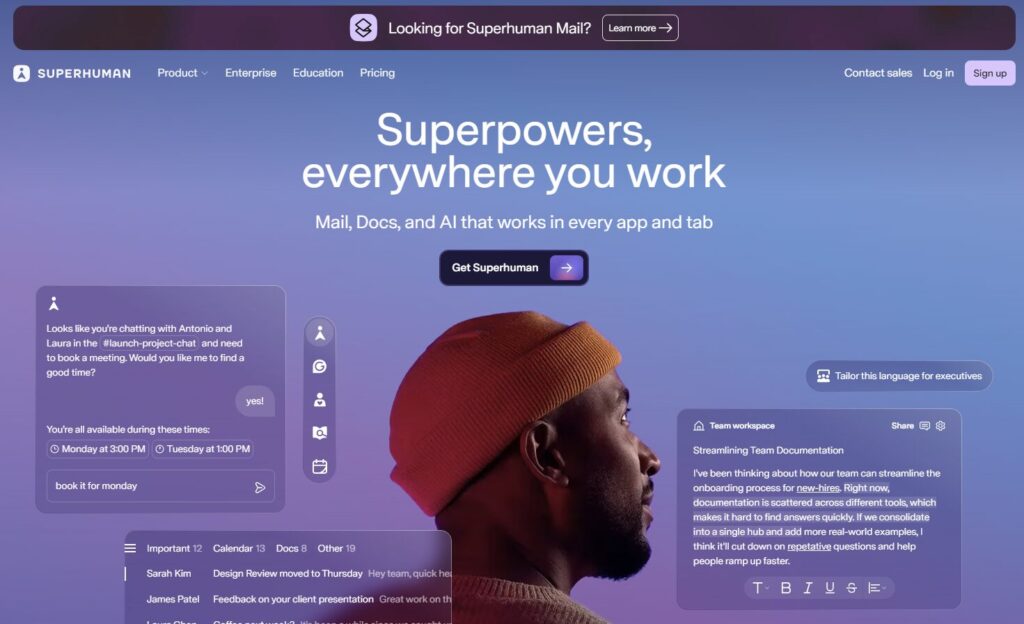
Verdict: Best for high‑volume email workflows Best For: Operators, executives, founders Price: $30/mo
Pros:
- Lightning‑fast
- Smart summaries
- Great keyboard shortcuts
Cons:
- Learning curve
- Not ideal for casual email users
My Experience: Superhuman AI made me feel fast again. I remember blasting through 60 emails in under 20 minutes and thinking, “This is what email should’ve been all along.” The summaries were sharp, the triage was clean, and the whole experience felt like someone finally redesigned email for people who don’t have time to breathe.
Use Cases:
- High‑volume inboxes
- Fast triage
- Daily communication
Bottom Line: If email is your bottleneck, Superhuman turns it into a strength.
⭐6. Sunsama
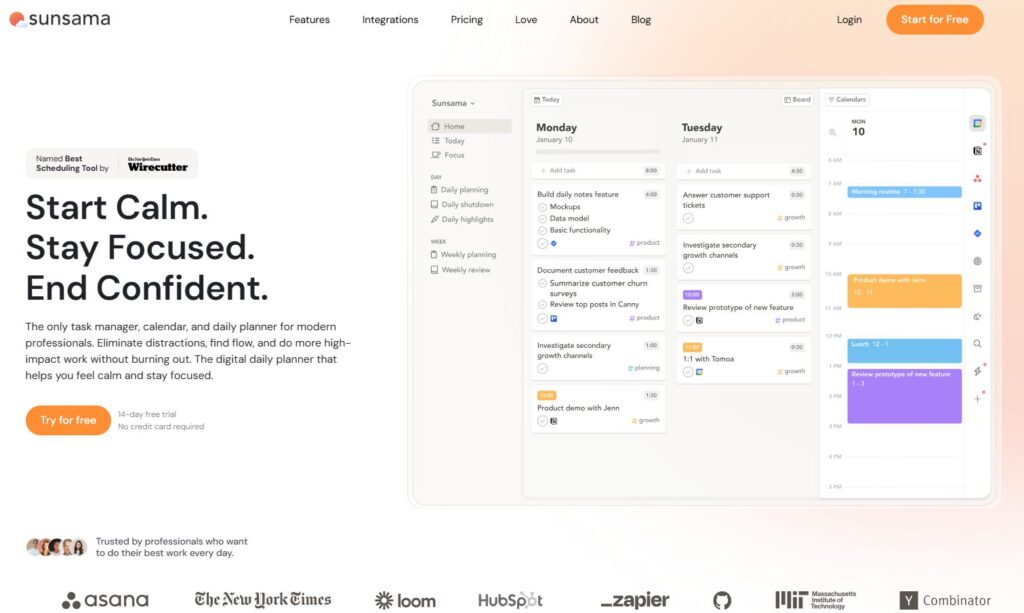
Verdict: Best for calm, intentional planning Best For: Founders who hate chaos Price: $20/mo
Pros:
- Beautiful daily planning
- Great for focus
- Helps reduce overwhelm
Cons:
- Not ideal for fast‑paced workflows
- Limited automation
My Experience: Sunsama felt like therapy disguised as software. One morning, I dragged a task into the “Today” column and the app gently asked, “Do you really have time for this?” I actually laughed. It was right. Sunsama made me slow down just enough to think clearly — something I didn’t realize I needed until it happened.
Use Cases:
- Daily planning
- Focus sessions
- Intentional work
Bottom Line: Perfect if you want structure without stress.
⭐7. Akiflow
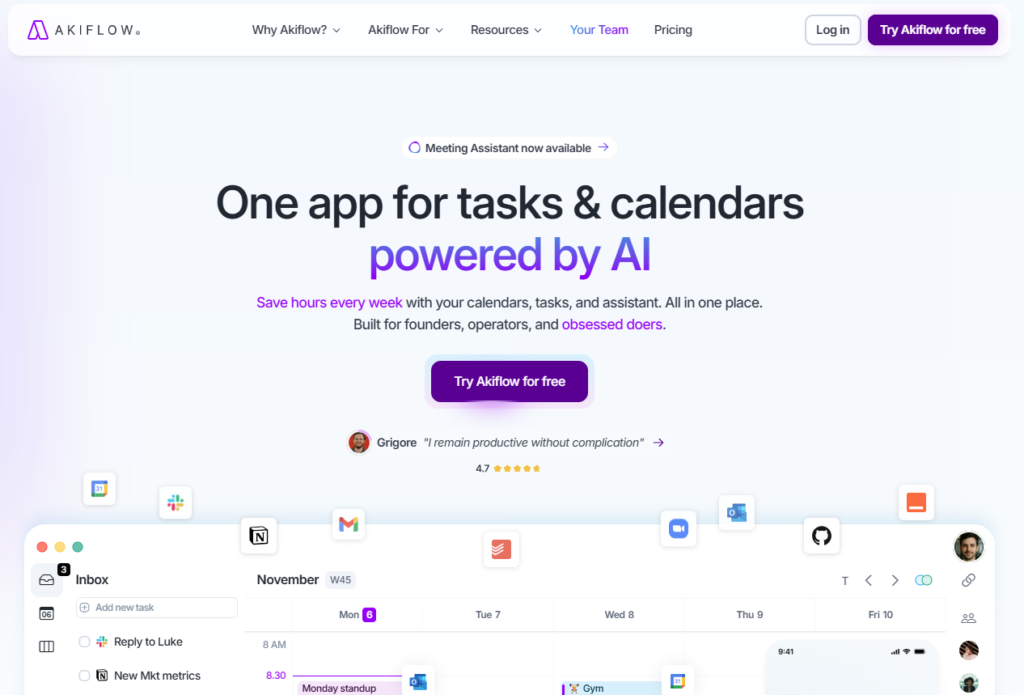
Verdict: Best for fast task capture Best For: People juggling multiple apps Price: $15/mo
Pros:
- Lightning‑fast inbox
- Great keyboard shortcuts
- Strong integrations
Cons:
- UI feels dense
- Learning curve
My Experience: Akiflow became my “catch everything” inbox. I’d be mid‑thought, hit a shortcut, and boom — task captured. No friction. No hesitation. It felt like having a mental safety net. The first time it auto‑linked a task to a meeting I forgot about, I realized how much context I’d been losing every day.
Use Cases:
- Task capture
- Multi‑app workflows
- Fast triage
Bottom Line: If your brain moves fast, Akiflow keeps up.
⭐8. Trevor AI
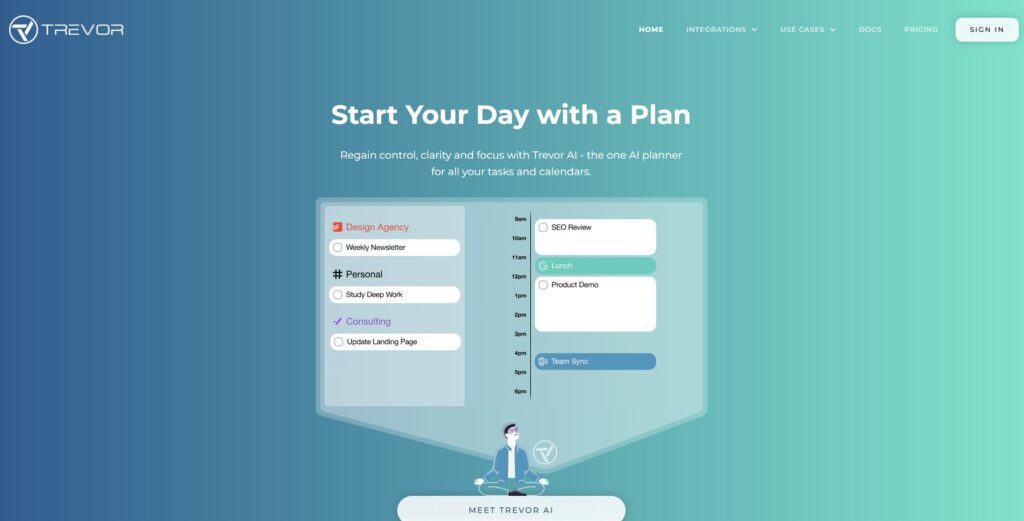
Verdict: Best for simple, smart scheduling Best For: Solo operators Price: Free–$10/mo
Pros:
- Clean interface
- Smart task scheduling
- Easy to use
Cons:
- Limited advanced features
- Not ideal for large teams
My Experience: Trevor AI reminded me of the early days of productivity apps — simple, clean, and surprisingly effective. I dropped a task into the timeline and watched it find the perfect slot. It wasn’t flashy, but it was reliable. Sometimes that’s all you need.
Use Cases:
- Solo planning
- Light scheduling
- Daily organization
Bottom Line: A great lightweight assistant for individuals.
⭐9. ClickUp AI
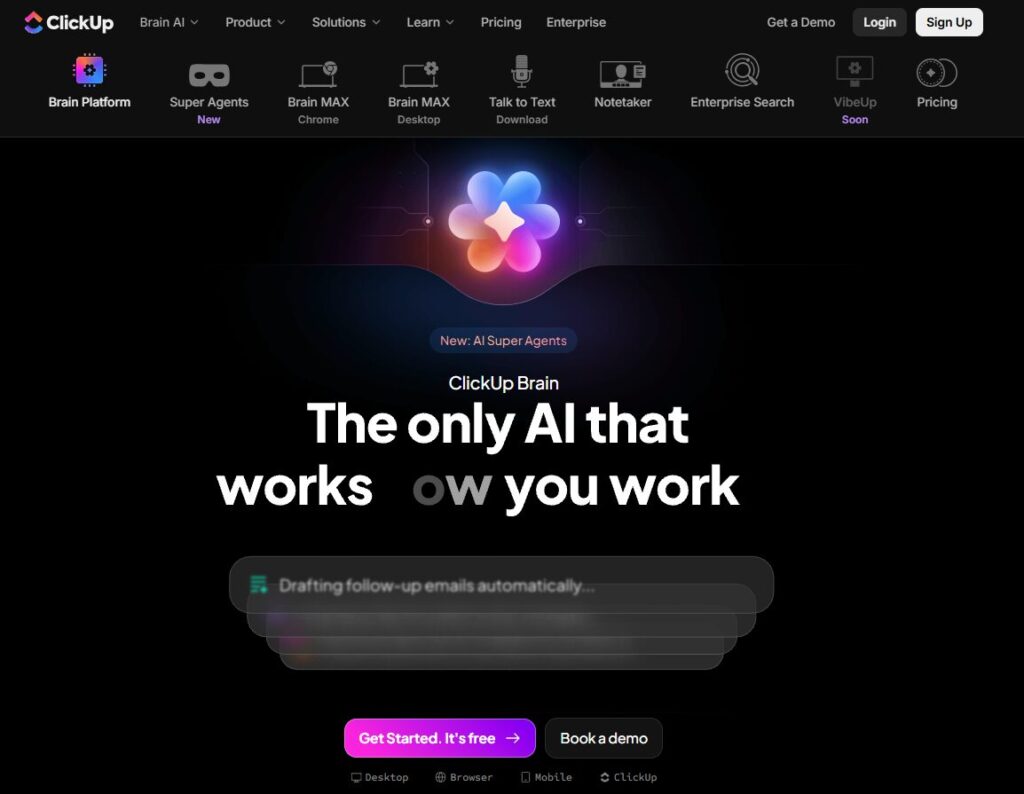
Verdict: Best for teams needing everything in one place Best For: Agencies, teams, complex workflows Price: $7–$19/mo
Pros:
- Extremely powerful
- Great for documentation
- Strong automation
Cons:
- Overwhelming for beginners
- Requires setup time
My Experience: ClickUp AI felt like a productivity command center. I used it to rewrite tasks, summarize docs, and clean up messy project boards. It’s not the kind of tool you casually adopt — it’s the kind you commit to. But once it clicks, it becomes the backbone of your workflow.
Use Cases:
- Team planning
- Documentation
- Project management
Bottom Line: If you want power and flexibility, this is it.
⭐10. Vimcal + Maestro
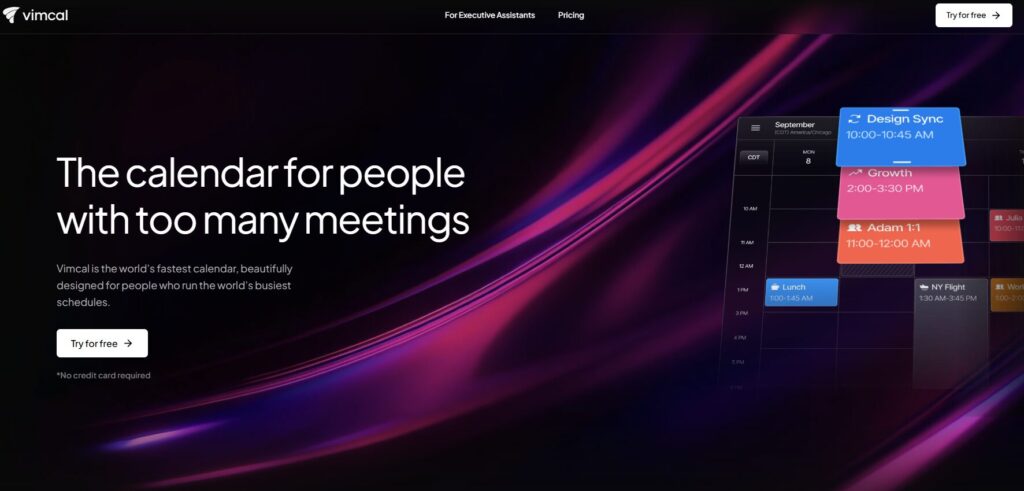
Verdict: Best for high‑speed scheduling Best For: Executives, operators, fast‑paced teams Price: $15–$25/mo
Pros:
- Fastest calendar UI
- Smart scheduling
- Great for travel planning
Cons:
- Not ideal for casual users
- Limited task features
My Experience: Vimcal made me feel like I had superpowers. I scheduled three meetings in under a minute and sat there wondering why every calendar app isn’t built like this. Maestro added the AI layer I didn’t know I needed — suggesting times, drafting emails, and smoothing out the rough edges of my day.
Use Cases:
- Scheduling
- Travel planning
- High‑speed workflows
Bottom Line: If speed matters, nothing beats this combo.
⭐ Comparison Table — Full List
| Tool | Best For | Price | Strength | Weakness |
|---|---|---|---|---|
| Motion | Chaotic schedules | $19–$34/mo | Auto‑prioritized days | Can feel aggressive |
| Reclaim | Adaptive time blocking | Free–$12/mo | Flexible scheduling | Setup time |
| Notion AI | Workspace + writing | $10–$18/mo | Context awareness | Can get cluttered |
| Clara | Email + meetings | Custom | Human‑like handling | Expensive |
| Superhuman AI | High‑volume email | $30/mo | Fast triage | Learning curve |
| Sunsama | Calm planning | $20/mo | Intentional workflow | Limited automation |
| Akiflow | Fast task capture | $15/mo | Speed + shortcuts | Dense UI |
| Trevor AI | Simple scheduling | Free–$10/mo | Clean + easy | Limited features |
| ClickUp AI | Team workflows | $7–$19/mo | All‑in‑one power | Overwhelming |
| Vimcal + Maestro | High‑speed scheduling | $15–$25/mo | Fastest UI | Not for casual users |
Buyer’s Guide: How to Choose the Right AI Personal Assistant
If there’s one thing I learned while testing the best AI personal assistant tools, it’s that the marketing pages never prepare you for the emotional side of delegation. You think you’re just installing software, but really you’re handing over pieces of your day — your tasks, your reminders, your mental load — to something that has to earn your trust. And trust is fragile. I’ve had AI personal assistant apps that felt like a gift, and others that made me feel like I was babysitting a robot.
Here’s the part nobody tells you: the best AI productivity assistants don’t make you feel “efficient.” They make you feel lighter. They remove the invisible weight you’ve been carrying. They give you back the mental space you didn’t realize you’d lost.
1. Look for tools that reduce friction, not add features
A lot of AI assistants for work brag about automation, but automation means nothing if it interrupts your flow. I’ve had tools pop up at the worst times, asking questions I didn’t have the energy to answer.
2. Beware of tools that over‑automate
One of the AI task management tools I tested rescheduled a meeting without asking me. I felt my stomach drop. That was the moment I realized: control matters more than convenience.
3. Choose tools that understand context
The best AI personal assistant apps don’t just follow commands — they interpret them. They see the patterns in your day and adapt.
4. My biggest mistake
I once installed three assistants at once, thinking I’d compare them faster. Instead, they all started fighting over my calendar like divorced parents. I shut my laptop and walked away.
If you want the best AI personal assistant tools that actually help, not tools that make you feel like you’re managing another employee, choose carefully.
⭐ FAQ
1. Do AI personal assistants actually save time?
Yes — but only if they fit your workflow. The wrong tool adds friction.
2. Are these tools safe for sensitive information?
Most use strong encryption, but always check their privacy policy.
3. Can AI assistants replace human assistants?
Not fully. They’re great for tasks, not judgment.
4. Do I need multiple tools?
Usually no. One good assistant can replace three mediocre ones.
5. What’s the biggest red flag?
Any tool that takes actions without confirming them.
6. How long does setup take?
Anywhere from 10 minutes to a few hours depending on complexity.
7. Do these tools work on mobile?
Most do, but quality varies wildly.
8. What if I hate automation?
Choose a tool that focuses on suggestions instead of actions.
⭐ Final Recommendation
After weeks of testing, breaking things, fixing things, and watching how these tools behave under real pressure, here’s the truth: the right assistant depends on the kind of chaos you’re dealing with.
- If your schedule is a disaster: Motion
- If you want calm structure: Sunsama
- If you want flexibility: Reclaim
- If your inbox is the enemy: Superhuman AI
- If you want a second brain: Notion AI
- If you want speed: Vimcal + Maestro
- If you want everything in one place: ClickUp AI
- If you want simple + smart: Trevor AI
- If you want human‑like email help: Clara
- If you want fast capture: Akiflow
What I personally use is a hybrid: Motion for planning, Notion AI for thinking, and Superhuman AI for email. It keeps my days sharp without overwhelming me.
If you take anything from this guide, let it be this: the right assistant doesn’t just make you productive — it makes you feel human again.
⭐ Related Guides
⭐ ABOUT THE AUTHOR
1. Where This Journey Started
I built ToolCompare.ai because I was drowning in decisions. I remember sitting at my desk one night, surrounded by half‑finished tasks, wondering why choosing between AI personal assistant apps felt harder than running a business. That frustration pushed me into testing the best AI personal assistant tools myself. I didn’t want theory — I wanted truth. And the truth was messy. Some tools helped. Some broke things. Some made me question whether AI productivity assistants were even worth it. But the deeper I went, the more I realized how much these tools could change the way we work. Especially for founders who feel like they’re carrying the world on their shoulders.
2. The Mistake That Changed Everything
One of the earliest mistakes I made was trusting an assistant that looked perfect on paper. It promised to handle scheduling, tasks, and email. Instead, it double‑booked me, deleted a reminder, and sent a message I didn’t approve. I felt stupid — like I’d handed my life to a toddler with a keyboard. That was the moment I realized how important trust is with AI assistants for work. You can’t just install something and hope for the best. You have to test it, break it, and see how it behaves under pressure. That mistake taught me to evaluate AI task management tools with a level of scrutiny I didn’t have before. And honestly, it made me a better reviewer.
3. What I Learned the Hard Way
There’s a strange humility that comes from watching your assumptions fall apart. I used to think I could predict how these AI personal assistant apps would behave. I was wrong. Some tools I expected to love ended up frustrating me. Others I dismissed early became essential. The best AI personal assistant tools weren’t always the flashiest — they were the ones that quietly removed friction from my day. I learned that AI productivity assistants aren’t about doing more. They’re about feeling less overwhelmed. And that shift in mindset changed everything about how I test, write, and build ToolCompare.ai.
4. Why I Keep Doing This
Every guide I write is a way of documenting the things I wish someone had told me earlier. ToolCompare.ai isn’t just a site — it’s the notebook I wish I had when I started. Testing AI assistants for work taught me that productivity isn’t about speed. It’s about clarity. It’s about choosing the right AI task management tools so you can focus on the work that actually matters. And if my testing saves you even one bad decision or one wasted week, then every late night was worth it. I keep doing this because I know how heavy the load can feel — and how much lighter it gets when the right assistant finally clicks.